

What Migrate does
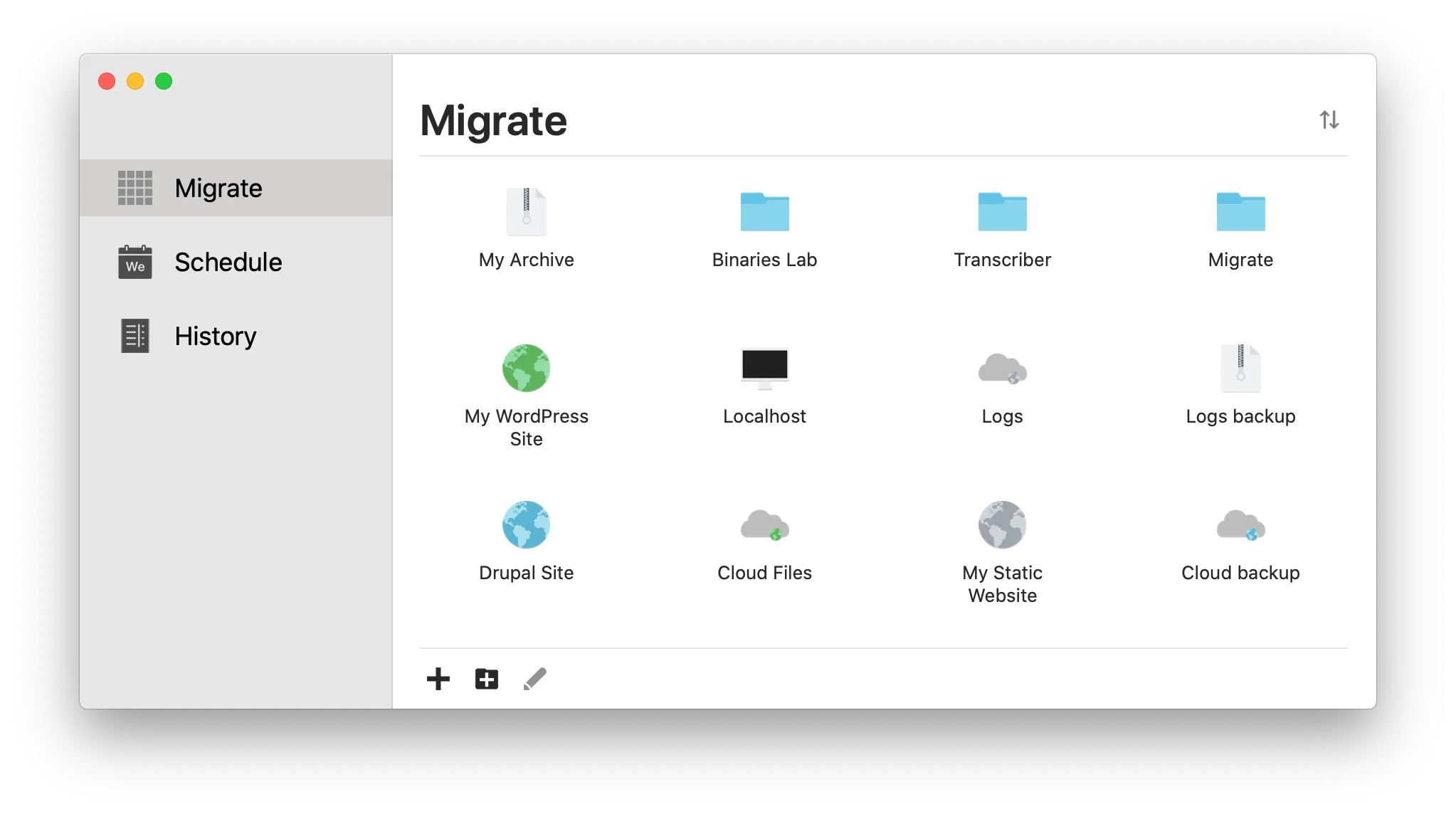
Migrate is a native macOS app for moving websites, files, documents and databases from one place to another. Connect a server over SFTP or FTP, your own machine, a zip archive or a cloud account, then push or pull in a single run. Schedule migrations so they happen without you, and check every completed run in the history list. Account passwords are stored in your macOS Keychain, and the files themselves travel directly between the two endpoints you configured — never through us.
Every account type you actually use
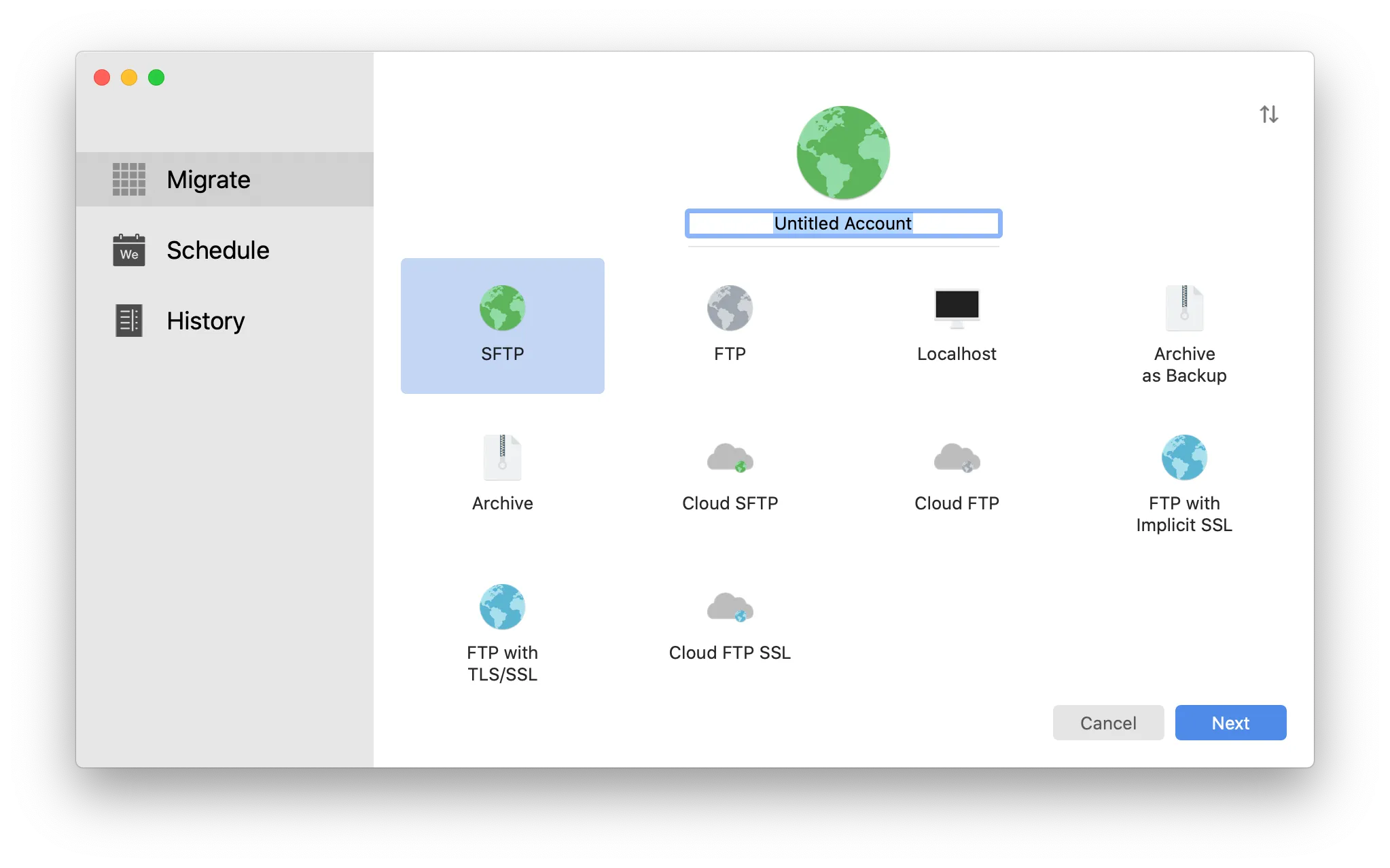
SFTP, SFTP with a private key, plain FTP, FTP with TLS/SSL, FTP with implicit SSL, localhost, zip archives and cloud accounts.
Whatever your host offers and wherever your backups live, Migrate can talk to it — so a single run can go from a live server to your laptop, or from a local build straight into a zip.
Set a site up once, reuse it forever
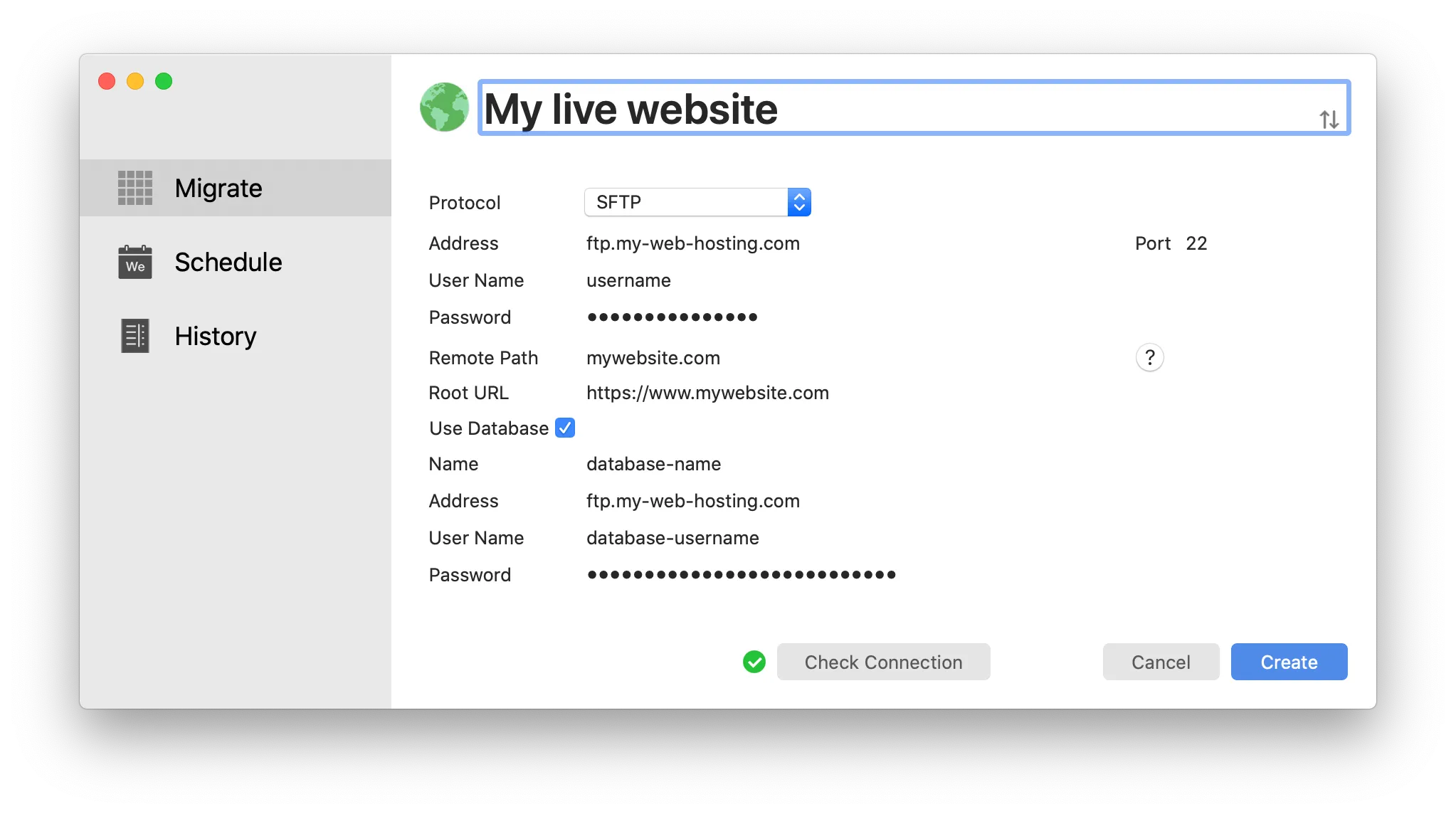
Store the address, the remote path, the root URL and the database credentials together as one named account.
Check the connection before you commit to anything, then keep the account around for every future push and pull. Passwords go into the macOS Keychain through your Apple account, so they stay under your control and can be changed at any time.
Push and pull in one move
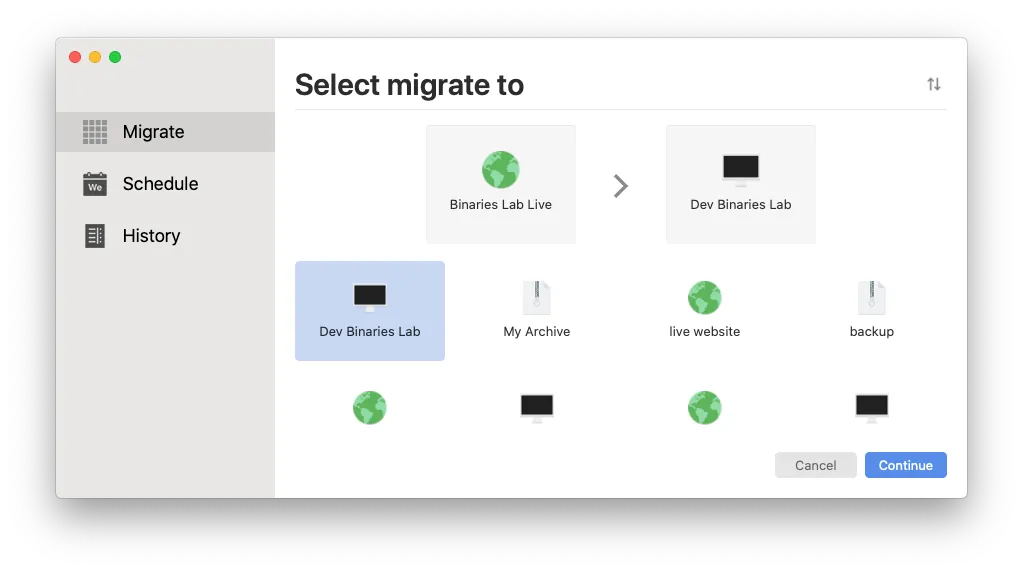
Pick a source, pick a destination, and Migrate handles the rest.
Live server to local development, staging to production, one host to another, or anything at all into an archive. The direction is yours, and there is no limit on how many sites you keep.
Find & replace that survives serialised data
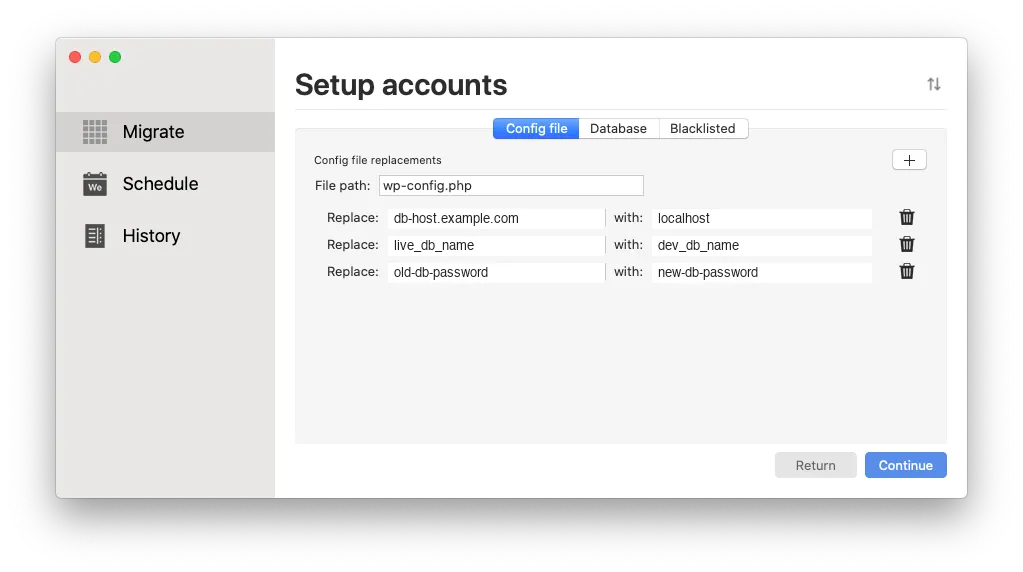
Exporting the database and running a find & replace on the SQL file corrupts everything PHP has serialised — widgets, theme options, plugin settings.
Serialised values carry their own length prefixes, so replacing a domain inside one leaves the prefix pointing at the wrong number of characters, and the value unserialises to an empty string. Migrate detects serialised data and rewrites it properly, so a domain change does not quietly empty half your site.
Schedule it and forget it
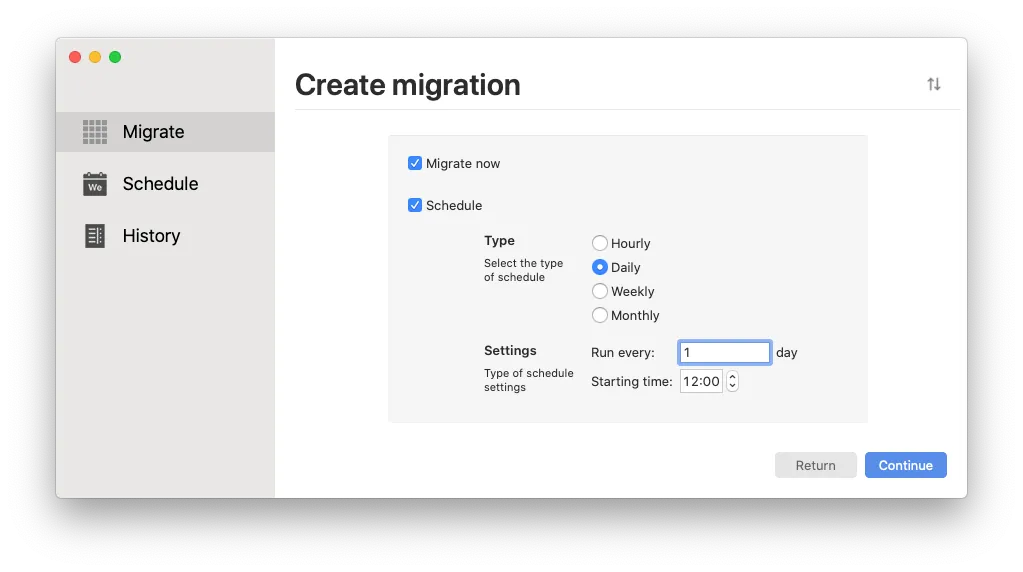
Run a migration now, run it on a schedule, or do both at once.
Hourly, daily, weekly or monthly, starting at a time you pick. Your website is not the place to keep your migration tooling — it belongs on your Mac, working while you do something else.
Your archives belong to you
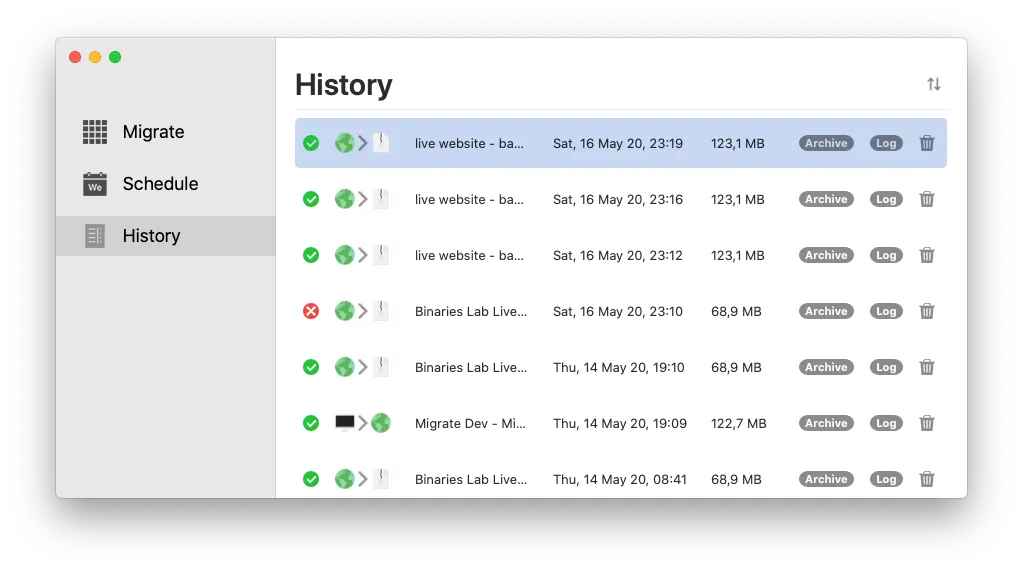
Every completed run is listed with its date, its size, its archive and its log.
Open the archive, read the log to see exactly what moved, or delete a run you no longer need. Backups that live only with your hosting provider are not really yours.
Packed with features
The things Migrate does, at a glance.
- Native macOS app
- SFTP and FTP
- Private key authentication
- Keychain-backed passwords
- Localhost accounts
- Zip and cloud archives
- Database transfer
- Serialisation-safe find & replace
- Scheduled migrations
- History and logs
- Connection check
- No ads, ever
Frequently asked questions
The questions we are asked most often, answered.
What is Migrate?
Migrate is a native macOS app for moving websites, files, documents and databases from one location to another. It connects to your servers, your own machine, archives and cloud storage, transfers what you tell it to, and rewrites database values along the way without corrupting serialised data.
Which protocols and account types are supported?
Server accounts over SFTP, SFTP with a private key, FTP, FTP with TLS/SSL and FTP with implicit SSL, plus localhost accounts and archive accounts such as zip archives and cloud accounts.
Why does Migrate handle find & replace differently?
Because a plain find & replace on a SQL dump breaks PHP serialised data. Serialised values store the length of each string, so changing a domain inside one leaves that length wrong and the value unserialises to an empty string. Migrate detects serialised data and adjusts it correctly.
Where are my passwords stored?
In your macOS Keychain, through your Apple account, using Apple’s own security framework. They stay on your Mac, you can edit or remove them at any time, and they are never transmitted to us.
Do my files pass through your servers?
No. Migrate connects directly to the source and the destination you configured and moves the data between them. We hold no copy of your sites, your files or your databases.
Can migrations run on a schedule?
Yes. A migration can run immediately, on a repeating schedule — hourly, daily, weekly or monthly, starting at a time you choose — or both.
How much does it cost?
Migrate is free to install, and the most-used features stay free. Additional features are unlocked by a subscription, available in several plans. A subscription renews automatically until you switch renewal off in your Apple account settings; the current plans and prices are shown inside the app and on its Mac App Store listing.
Are there any ads?
No. We dislike ads as much as you do.
Is there a Windows or Linux version?
Not at the moment. Migrate is built natively for macOS and is available on the Mac App Store only.
What happens if a migration fails?
The run is recorded in the history list with its log, so you can see where it stopped. Always take a backup of both ends before you start: a failed transfer can leave data missing at the destination, and we cannot recover it for you.